

Pingdom
Pingdom is a website monitoring tool we use to ensure consistent uptime for our clients’ websites and web applications. It can also measure a site’s performance and availability.
Key Features Include
Section titled “Key Features Include”- Uptime Monitoring: Pingdom continuously verifies if a website or web application is operational. It alerts the concerned team if any downtime is detected.
- Performance Monitoring: This feature evaluates the load times and performance of web pages, offering actionable insights to maintain peak performance.
- Transaction Monitoring: Pingdom can examine intricate transactions on a website (e.g., user logins, e-commerce checkouts) to ensure they operate as intended.
- Page Speed Monitoring: This tool tests a webpage’s load speed and contrasts it with industry best practices for website performance.
- Alerting Mechanism: Upon detecting issues, Pingdom sends alerts via methods such as email, SMS, or app integrations like Slack.
How We Use Pingdom
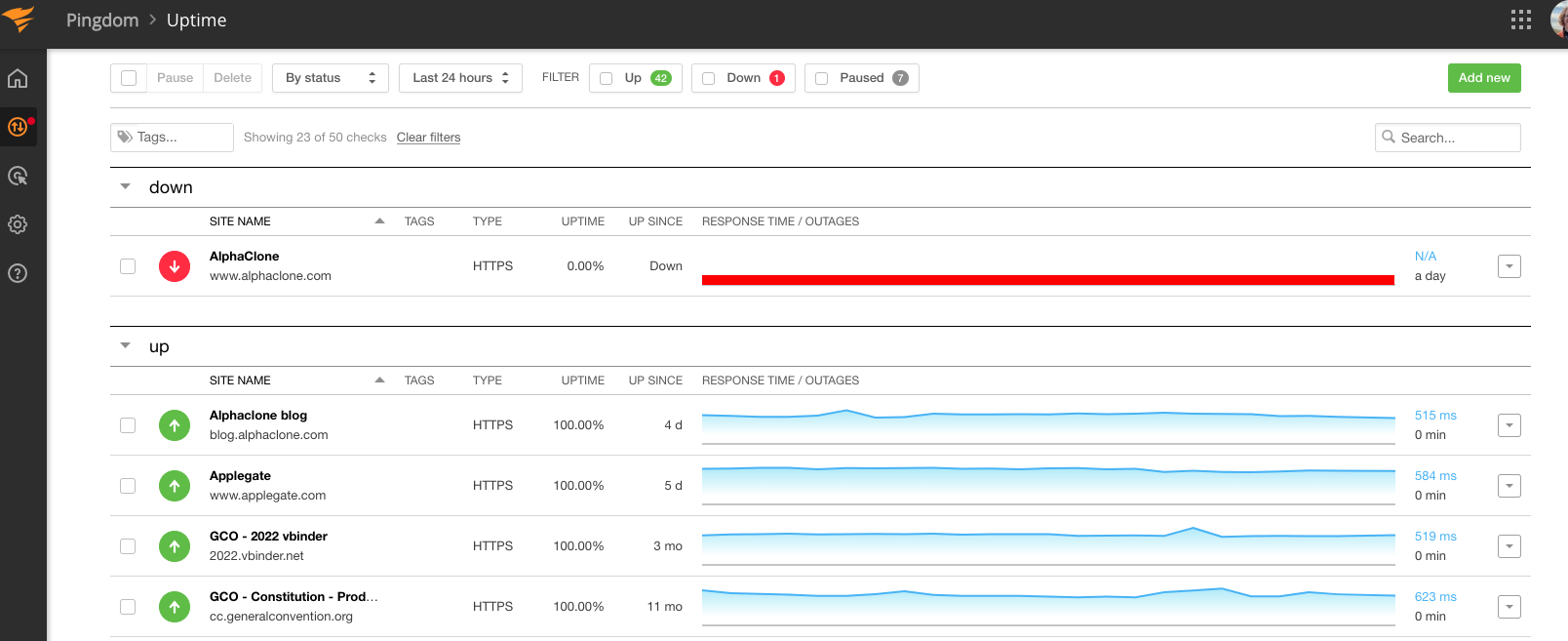
Section titled “How We Use Pingdom”We primarily use Pingdom to monitor our clients’ sites and applications and alert select members of our team if there is an outage. Authorized members of the engineering team can visit our dedicated dashboard via Pingdom’s portal. Here they can view, add, and update Uptime alerts for our clients.
Managing Recipients for Alert Notifications
Section titled “Managing Recipients for Alert Notifications”Owners or admin users can add and manage alert recipients for email and text notifications.
- Click on the settings cog symbol in the left sidebar and select “Alert Recipients”
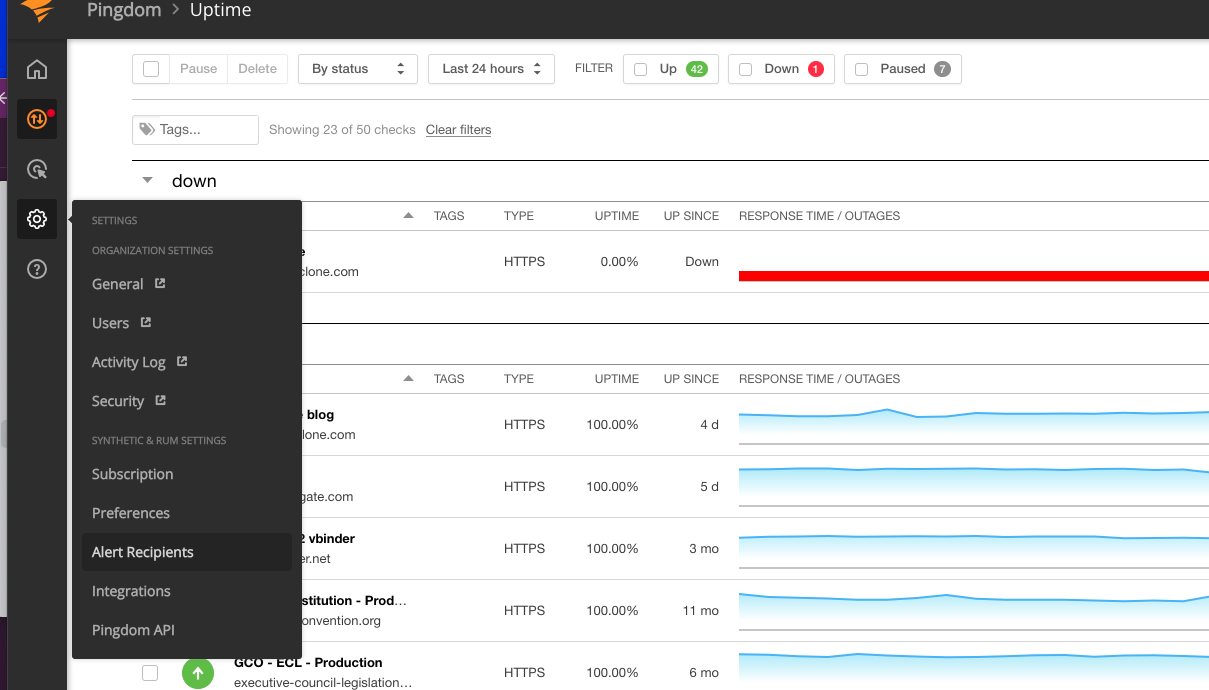
- From this view you can add or edit alert recipients. To add, click the “Add contact” button above the “Alert contacts” list.
- To edit a recipient’s settings, click on the three dots (”…”) at the end of their row. From here you can change their name, enable/disable alerts, and change the type of alerts they receive:
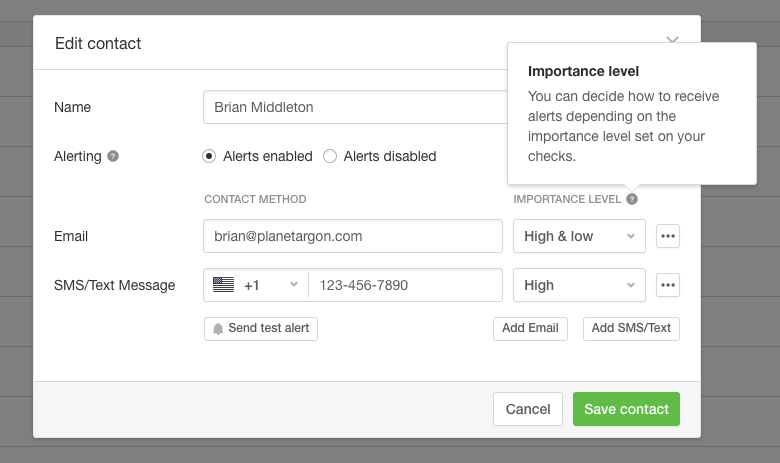 You can also send the recipient a test alert to confirm their contact information is correct.
 - Save your changes.
Managing Recipients for Email Reports
Section titled “Managing Recipients for Email Reports”- Navigate to “Synthetics” on the left sidebar and select “Email Reports.”
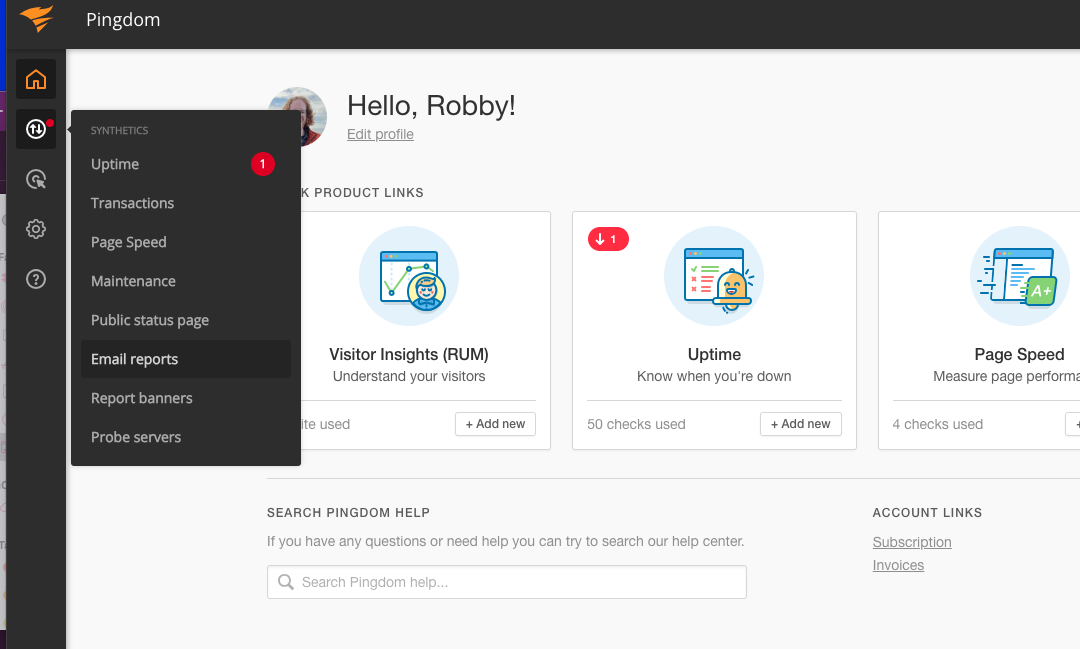
- Identify the report you intend to modify and click on the downward arrow on the report’s row. Choose “Edit.”
- Add or remove the desired email address from the list.
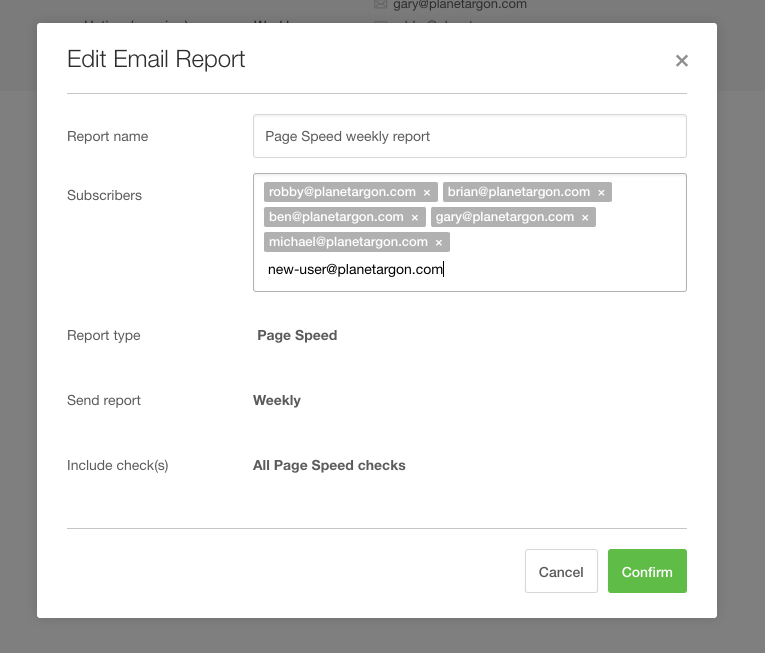
- Save your changes.
Outages Caused by Expired SSL Certificates
Section titled “Outages Caused by Expired SSL Certificates”Typically, a Pingdom outage alert signifies that an application isn’t functioning. However, Pingdom can also alert us about impending SSL certificate expirations.
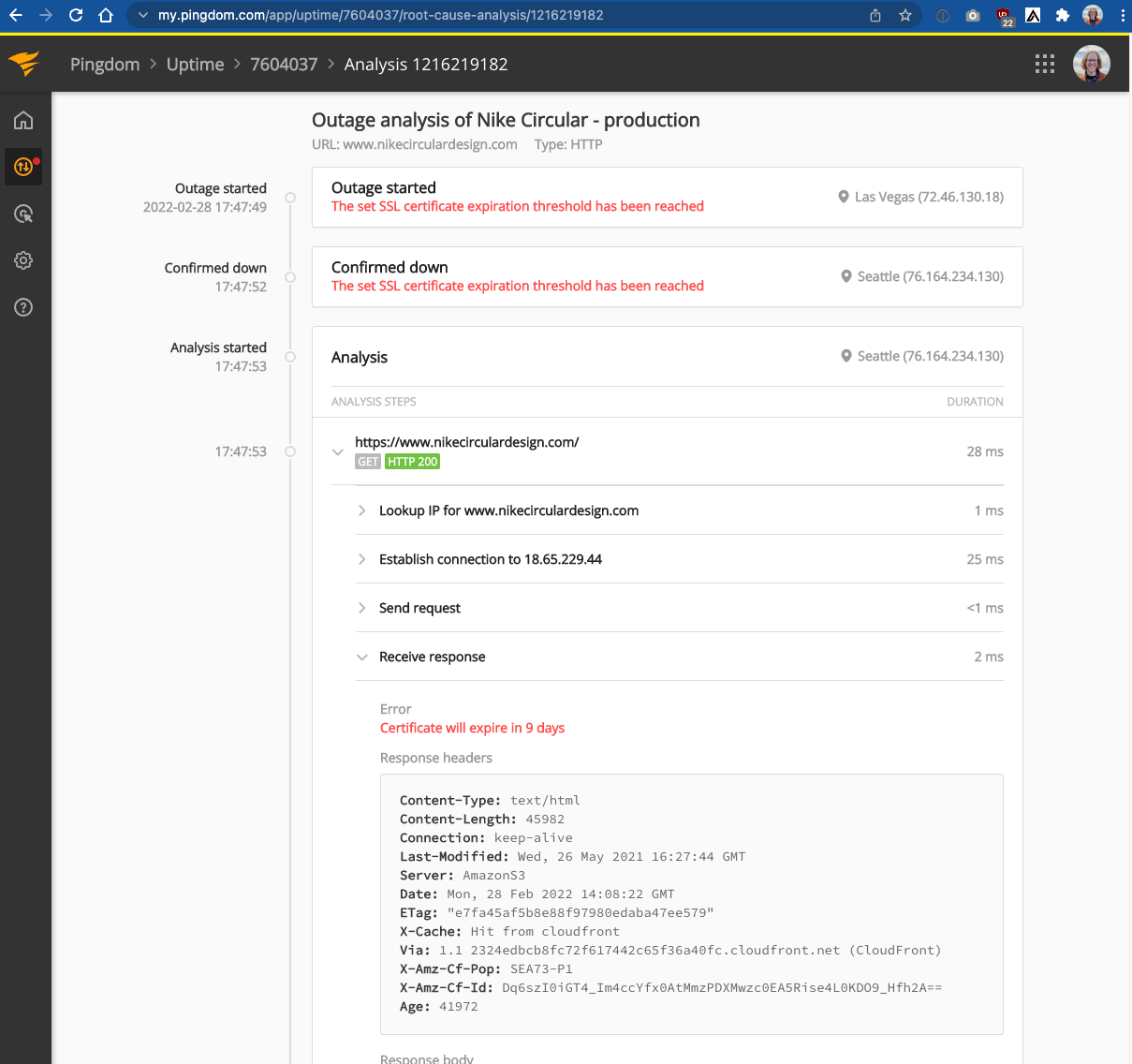
If you notice this alert, or if you receive an outage alert but the website or app seems to be up and running just fine, follow the instructions for Updating SSL Certificates in this handbook.