
While a lot of our daily conversations happen over Slack or Zoom, we still rely on email for specific communication purposes. The following are best practices we follow in order to effectively organize and send email.
When to Use Email
Section titled “When to Use Email”We use email when we are communicating about non-urgent topics that require more context or detail than would be appropriate for Slack. Examples of these typs of topics include:
- Questions regarding HR matters, such as insurance benefits and PTO
- Staffing updates, such as someone leaving the team or taking an extended leave of absence
- Managerial issues, such as interpersonal conflicts or teammate kudos
- Company issues, such as State of the Company information or new service offerings
Wondering when to use Slack instead? Check out the Slack page here.
How to Format an Email
Section titled “How to Format an Email”We use an email format adapted from larger corporate companies and the military in order to guarantee we’re sending the most efficient and effective emails possible. The following is a standard Planet Argon format you may use when sending emails:
- Subject Lines Using Keywords: We use ALL CAPS keywords in subject lines in order to ensure recipient knows the type and urgency of the email they have received. The keywords we most often use are:
- ACTION — requires the recipient to take an action
- SIGN — requires the recipient’s signature
- INFO — strictly informational, with nothing needed from the recipient
- DECISION — requires a decision and response from the recipient
- REQUEST — seeks approval or permission from the recipient
- Concise Yet Thorough Lede: Similar to a news article, we begin an email with a short summary of the most important information you want the recipient to know. This is also known as BLUF (bottom line up front) and it ensures your main point is received even if the recipient doesn’t read your entire email.
- Bullet Points When Appropriate: We like to break up large paragraphs of text into bullet points for easier digestion by the recipient. It is more visually appealing and is more likely to lead to your email being understood and retained by the recipient.
- Standardized Email Signature: During onboarding you will be asked to set up the standard Planet Argon email signature in your email settings. This standard includes the following details:
-
— two dashes and a new line to separate the content visually for people. Many email apps rely on this as a convention and will de-emphasize this content via automated styling. If you’re using the Gmail web client, Gmail will include these dashes before the signature by default, so no need to explicitly put them in the signature itself.
-
Your full name
-
Your pronouns (optional)
-
Your title | Planet Argon (linked to the website URL: https://www.planetargon.com/)
-
Our phone number + your extension (1-503-847-9214 ext. ???)
- Ask your manager for your extension if you’re unsure.
-
Link to your bio on the website
-
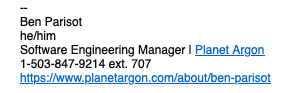
The following is an example of a properly formatted email signature:
-
How to Filter Emails
Section titled “How to Filter Emails”We use email filtering to better organize the types of emails that hit our inboxes and ensure that important messages and notifications don’t slip through the cracks.
-
Filtering Per Client: Follow this strategy to better organize emails per-client (using Gnomon Education for example):
- In Gmail, initiate a search
- For the “Has the words” field, pass in the following:
subject:GNOEDU OR from:gnomon.edu OR to:gnomon.edu OR cc:gnomon.edu - When creating a filter, also check:
- Apply the label (create/select one)
- Never send it to Spam
- Also apply filter to matching conversations.
- You can view and edit your existing filters here: https://mail.google.com/mail/u/0/#settings/filters
-
Filtering for Jira and Confluence Notifications: Follow this strategy to better organize emails coming from Jira and Confluence:
- Set up email filtering:
- Log in to your PA Gmail account in the browser
- Click “More” on the left menu, then click “Create new label” at the bottom.
- Enter “Jira” in the “Please enter a new label name” field.
- Repeat the previous three steps “Confluence”
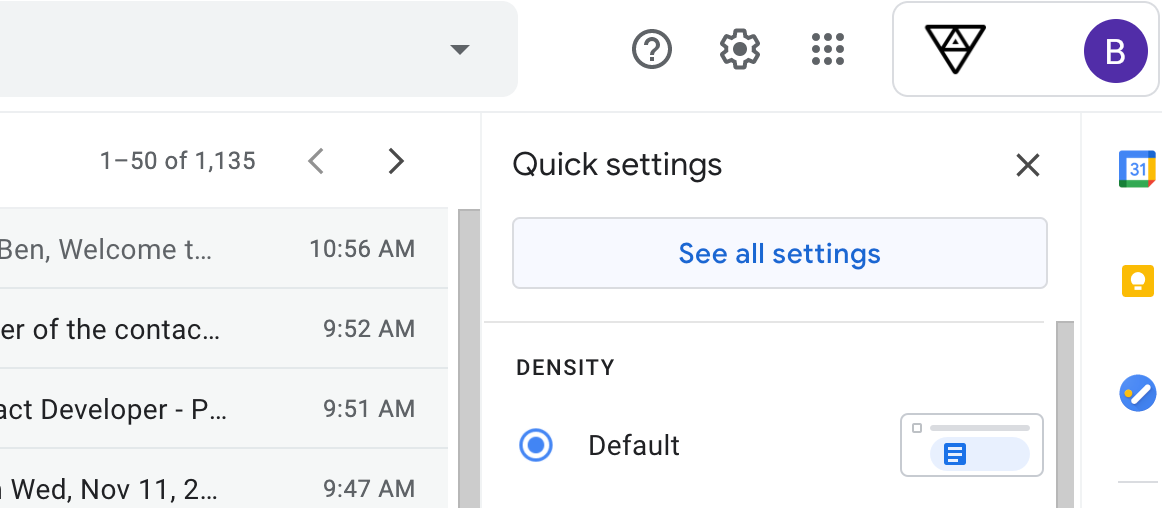
- Go to the Settings view.
- Click on “Filters and Blocked Addresses”, then click on “Create a new filter”
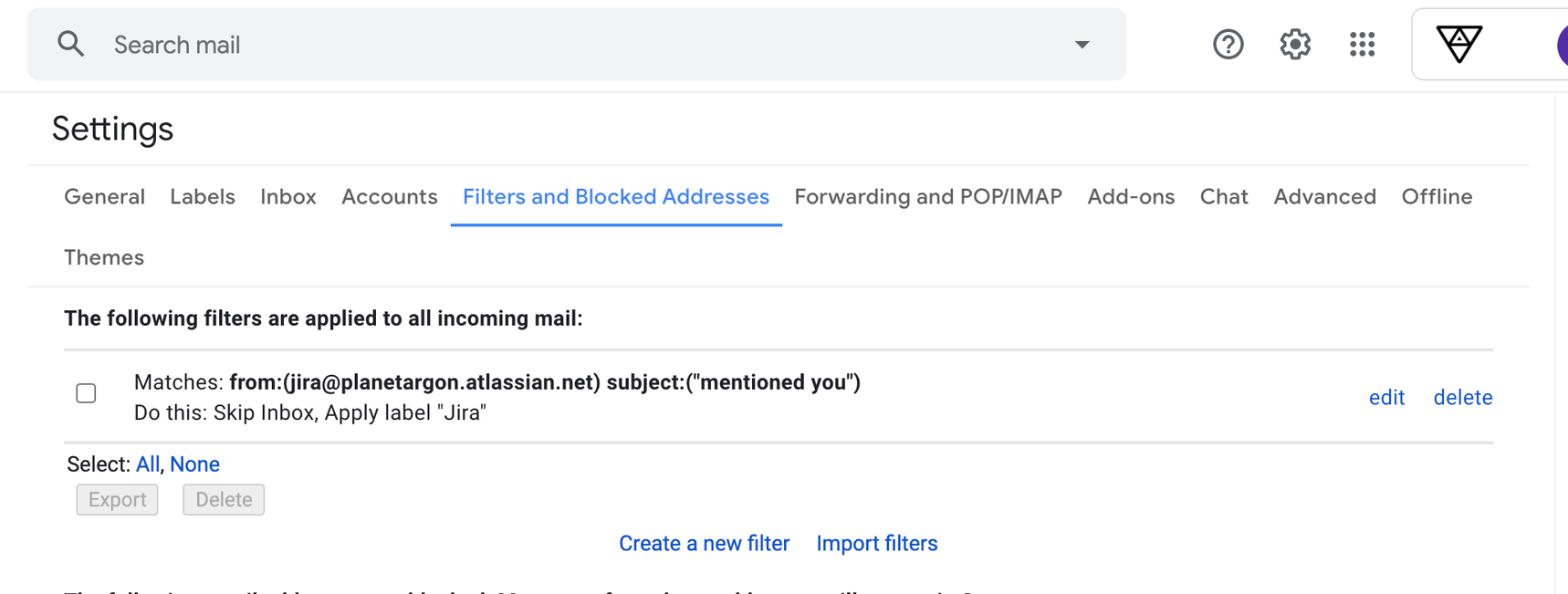
- For Jira:
- Fill out the From field with
jira@planetargon.atlassian.net - Fill out the Subject field with
mentioned you - Click “Create filter” and check the boxes for “Skip the Inbox” and “Also apply filter to”. Check the “Apply the label” box and choose the “Jira” label from the dropdown menu
- Repeat the above steps, but in step 2 change
mentioned youtoassigned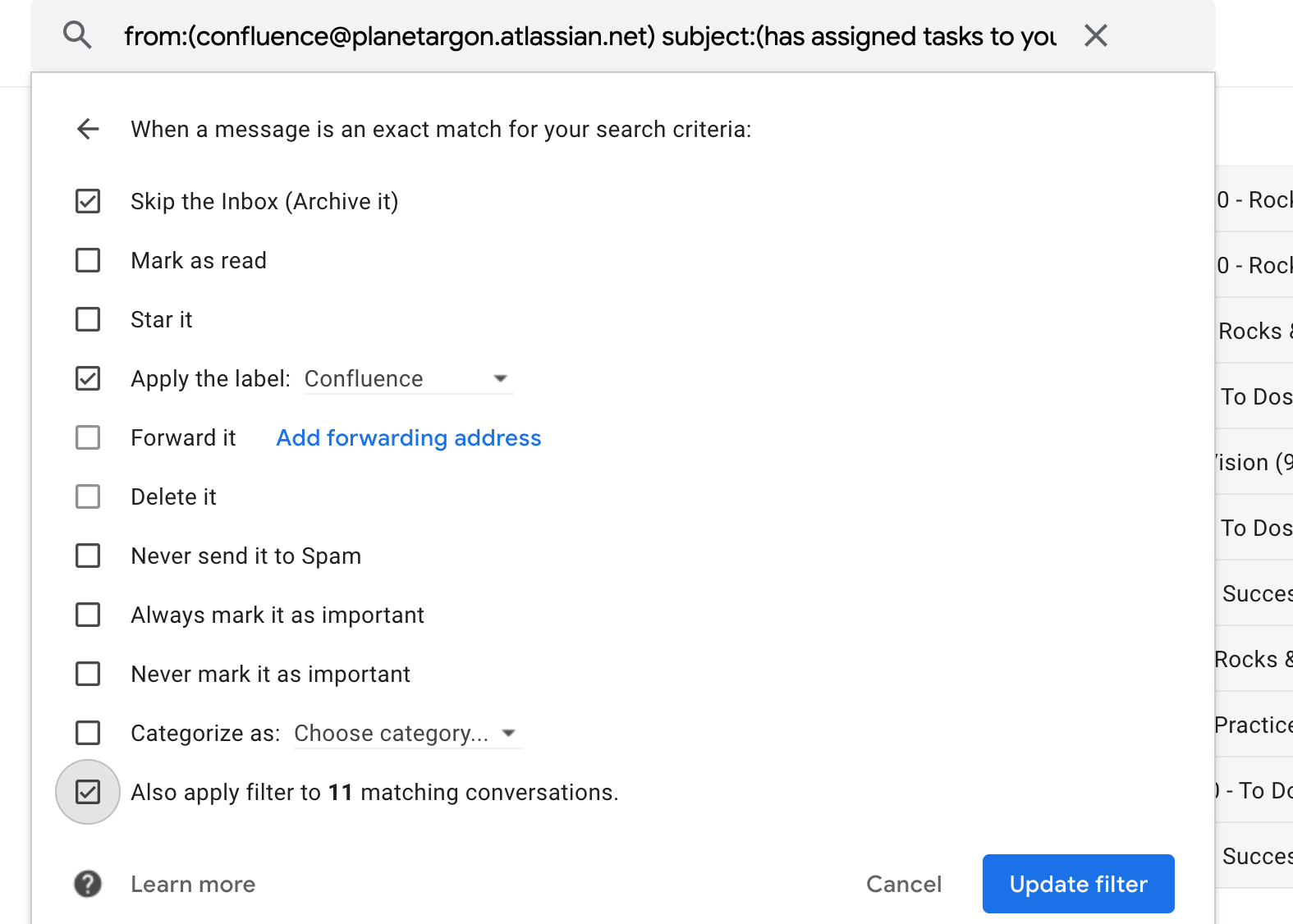
- Fill out the From field with
- For Confluence:
- Fill out the From field with
confluence@planetargon.atlassian.net - Fill out the Subject field with
mentioned you - Click “Create filter” and check the boxes for “Skip the Inbox” and “Also apply filter to”. Check the “Apply the label” box and choose the “Confluence” label from the dropdown menu.
- Repeat the above steps, but in step 2 change
mentioned youto hasassigned tasks to you
- Fill out the From field with
- NOTE: Changing the settings in the browser will update your mailboxes in your Desktop Mail app, so no need to repeat these steps for you desktop mail.
- Set Jira notification settings
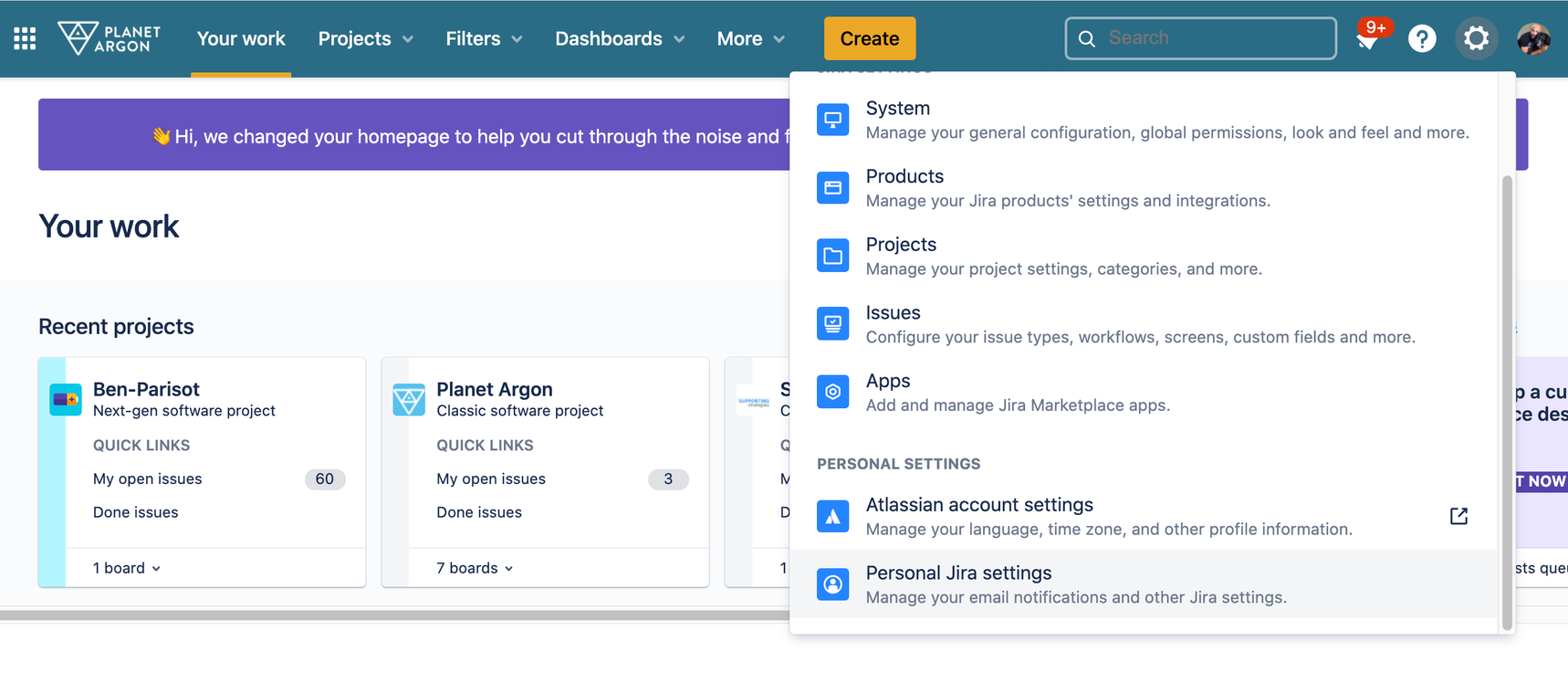
- Go into your Personal Settings in JIRA
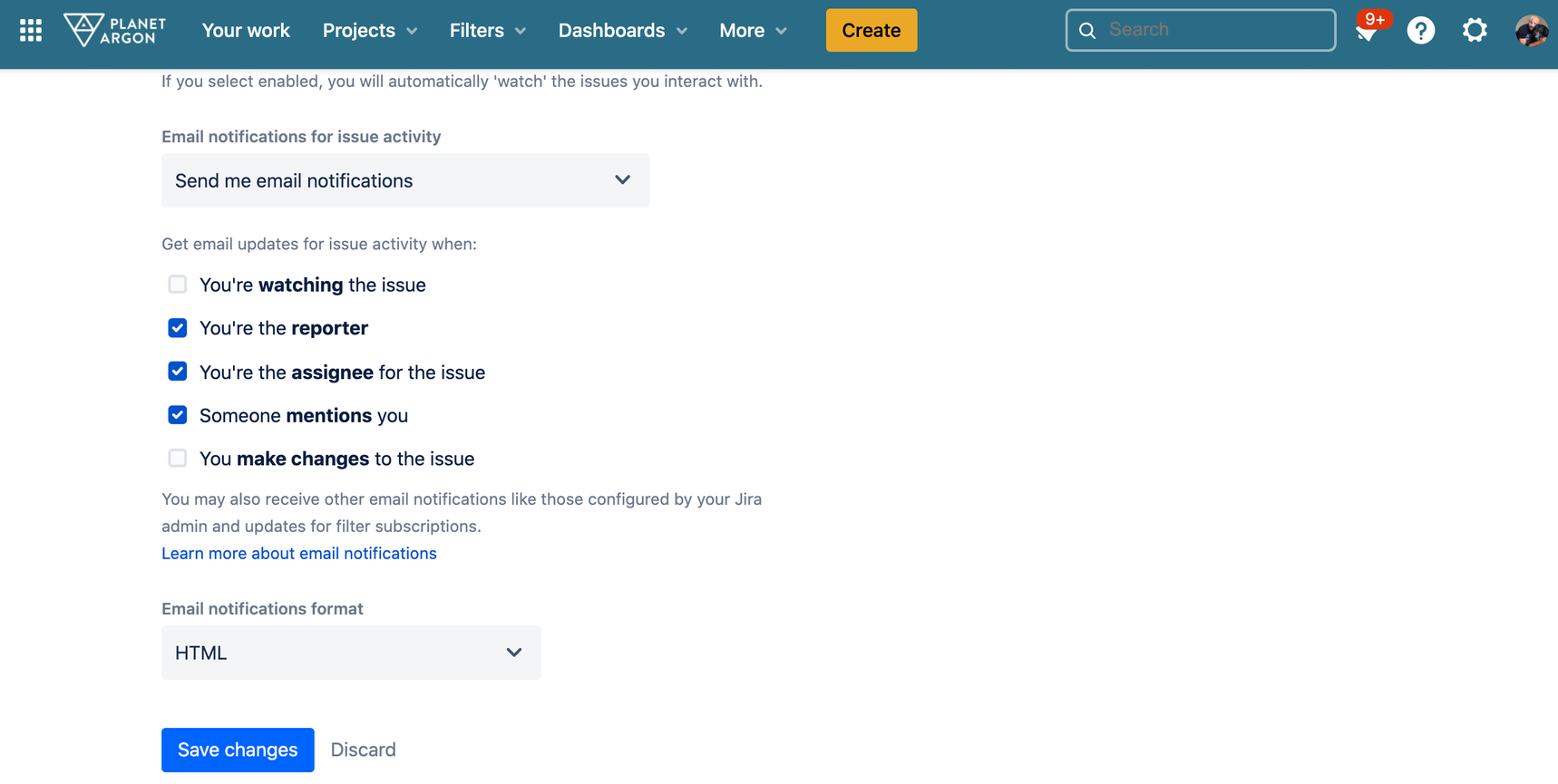
- Make sure your have email notifications enabled for the following:
- You’re the reporter. (Unless you are the project manager or tech lead, there will be few issues for which you are the reporter.)
- You’re the assignee for the issue
- Someone mentions you
- Go into your Personal Settings in JIRA
- Install Jira Cloud plugin to Slack
- Visit the landing page for the plugin here and click the “Add to Slack” button on the left.
- Authorize the plugin by clicking “Allow” at the bottom of the screen.
- Click “Login” to log in to your Jira account and integrate the plugin.
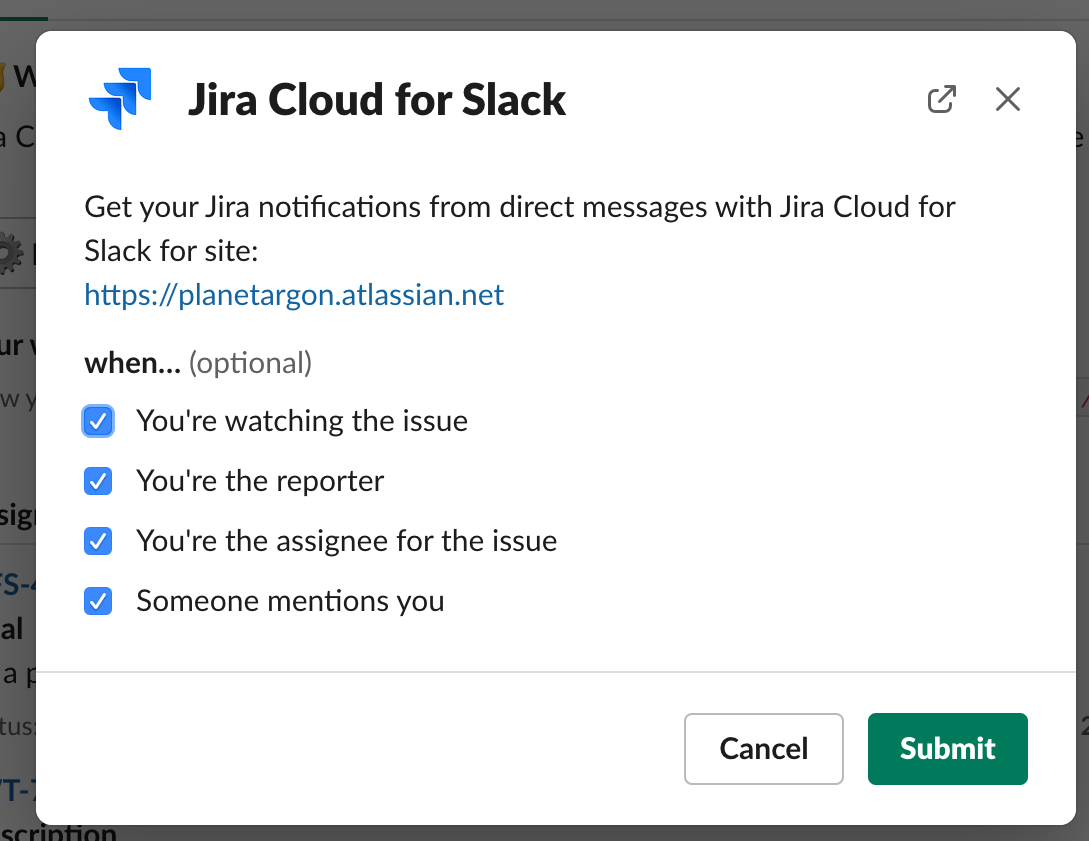
- You can choose which notifications you will receive DM from jirabot, but PA engineers are required to have at least “You’re the assignee for the issue” and “Someone mentions you” checked.
- Set up email filtering:
Incoming Email Forwarding for argonlabs.dev
Section titled “Incoming Email Forwarding for argonlabs.dev”There are scenarios when we need to provide an email address to a third-party tool in order to sign-up or receive notifications. Historically, we might use developers@planetargon.com and/or bugs@planetargon.com, but this often resulted in everyone on our development team getting all associated emails, which can lead confusion and the team ignoring those important email accounts.
Given this, we’ve set up a way to allow the team to manage incoming email forwarding on a client or project basis.
With this in mind, we purchased the domain name `argonlabs.dev“ so that individual team members could set up project- or application-specific accounts and modify the incoming email forwarding themselves. We do this via a tool called ImprovMX.
Example:
| email alias | forwards to |
|---|---|
| chronos @ argonlabs.dev | robby@planetargon.com,gary@planetargon.com,ben@planetargon.com |
| gco-team @ argonlabs.dev | michael@planetargon.com,liz@planetargon.com,john.rodriguez@planetargon.com,ben@planetargon.com,robby@planetargon.com |
High-level Instructions
Section titled “High-level Instructions”- Determine the alias you want to add and/or modify
- Login to https://app.improvmx.com/domains/argonlabs.dev/aliases
- Add/Modify the list of receipients that you want incoming email to forward to
- Test and ensure emails show up for people
- Use to your heart’s desire!
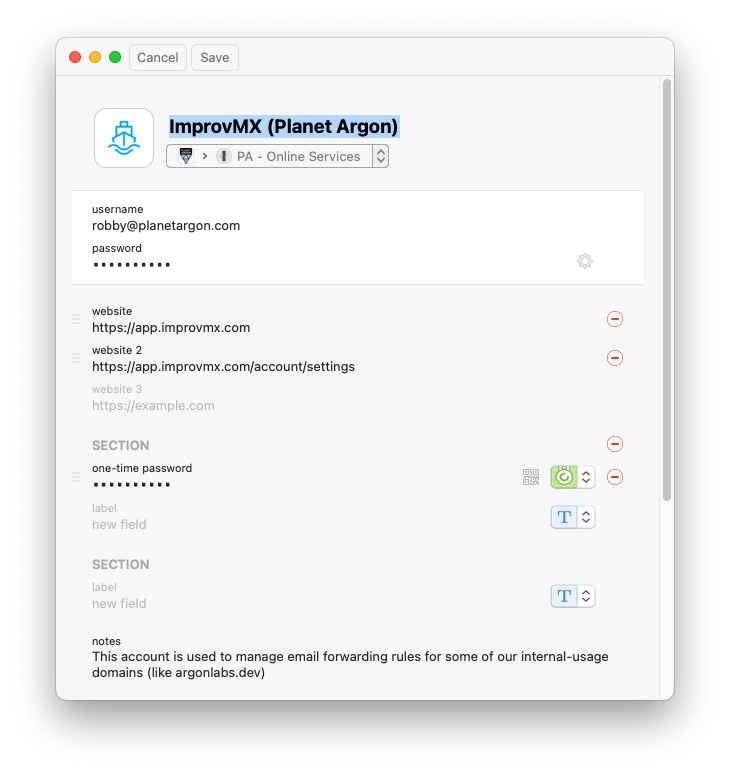
Q. Where are the credentials for ImprovMX managed?
A. Currently, ImprovMX doesn’t have a way to setup multiple user accounts, so we will need to share Robby’s account for the time being. Credentials are located in the 1Password - Online Services vault