
Stepsize
Deprecated: We no longer use Stepsize at Planet Argon. This page is kept for historical reference.
This is a short recap of how we used Stepsize at Planet Argon. For a full explanation of the tool, visit the Stepsize Docs here.
What is Stepsize?
Section titled “What is Stepsize?”Stepsize is a tool we use to tag and track technical debt. It allows us to mark specific code snippets, files, and folders as tech debt and create Jira issues tracking those marked places within the codebase right from an IDE (generally VSCode).
What problem does Stepsize solve for us?
Section titled “What problem does Stepsize solve for us?”Historically, tracking technical debt at Planet Argon has been a laborious process, and not one routinely practiced. Developers that did regularly keep tabs on code that could be refactored or tests that could be added would do so by noting the code as they came across it, switching from VSCode to Jira in their browser, finding the correct Jira project, and manually adding an issue to the backlog. This process was time-consuming and broke developers out of their workflow.
Stepsize allows devs to highlight problematice code and create a Jira issue to track that code right from within VSCode. This reduces the number of steps it takes to capture technical debt, reducing the chances of a developer losing their flow and saving the dev time and the client they’re billing towards money.
How to use Stepsize
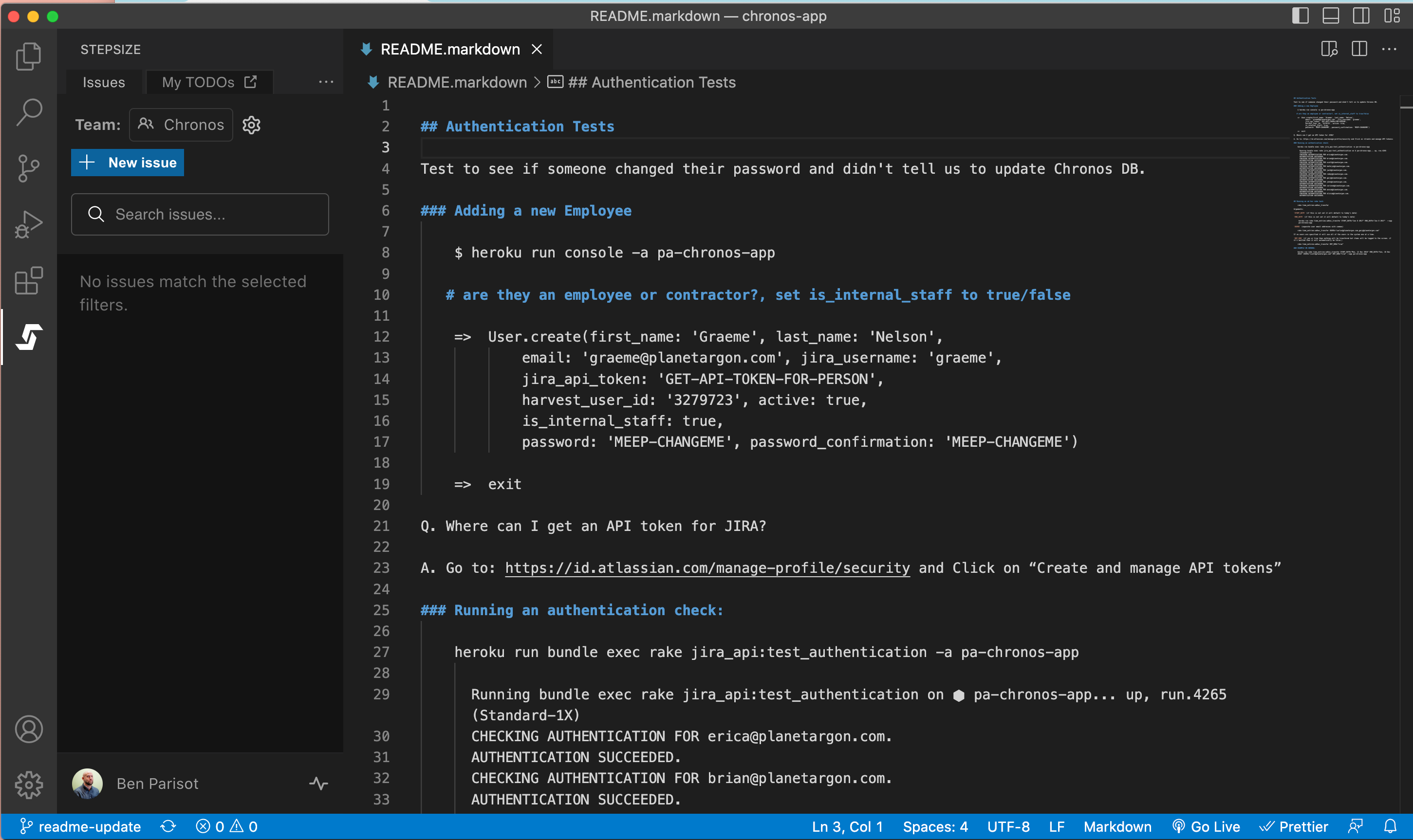
Section titled “How to use Stepsize”Stepsize has a very easy to use in-app interface. When working in a code base, if you come across a snipped or file you feel qualifies as technical debt and needs revisiting, simply click the Stepsize icon on the left sidebar to bring up the Issue Management panel:
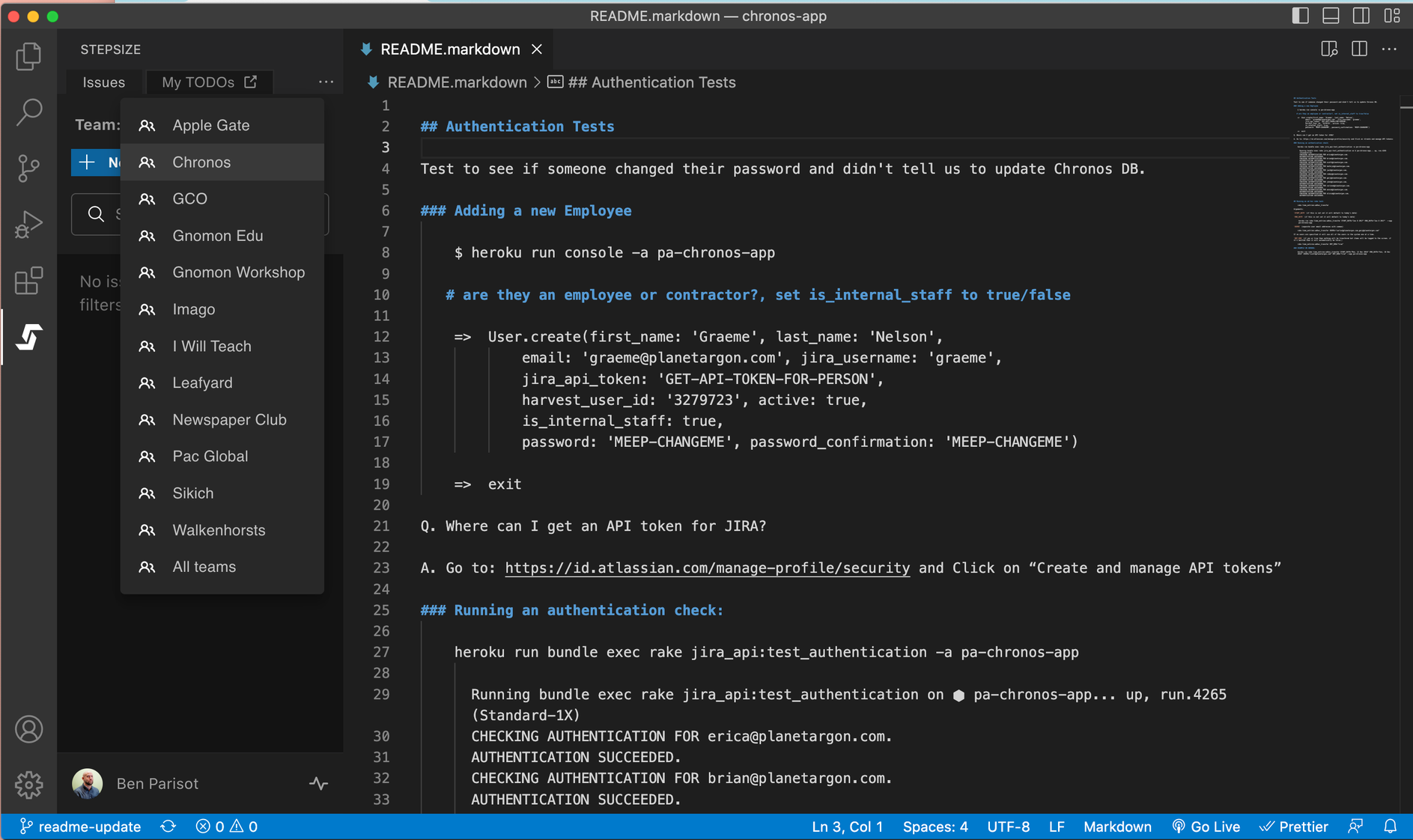
Choose the correct project from the “Team” dropdown menu:
Push the + New Issue button to bring up the Issue Creation panel:
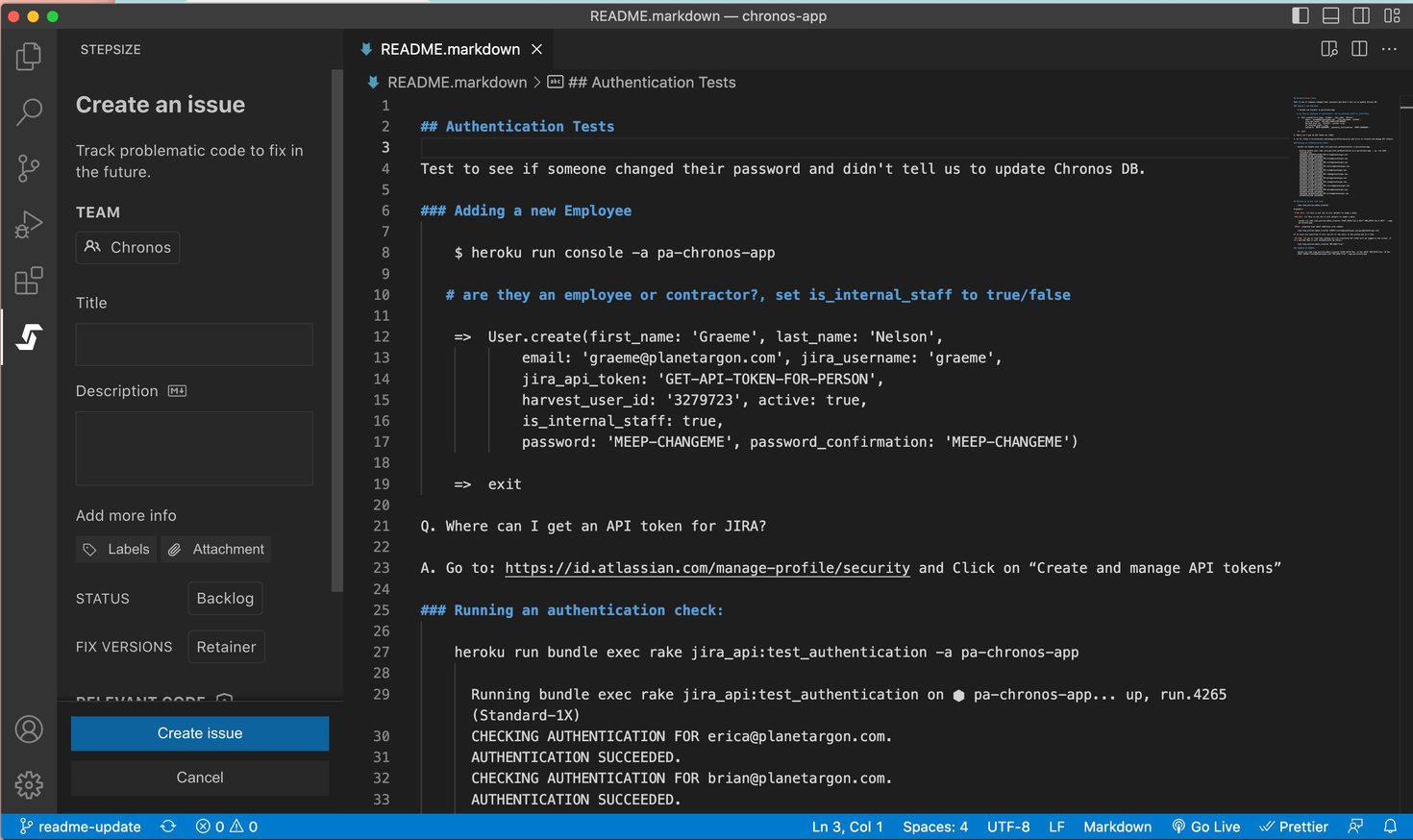
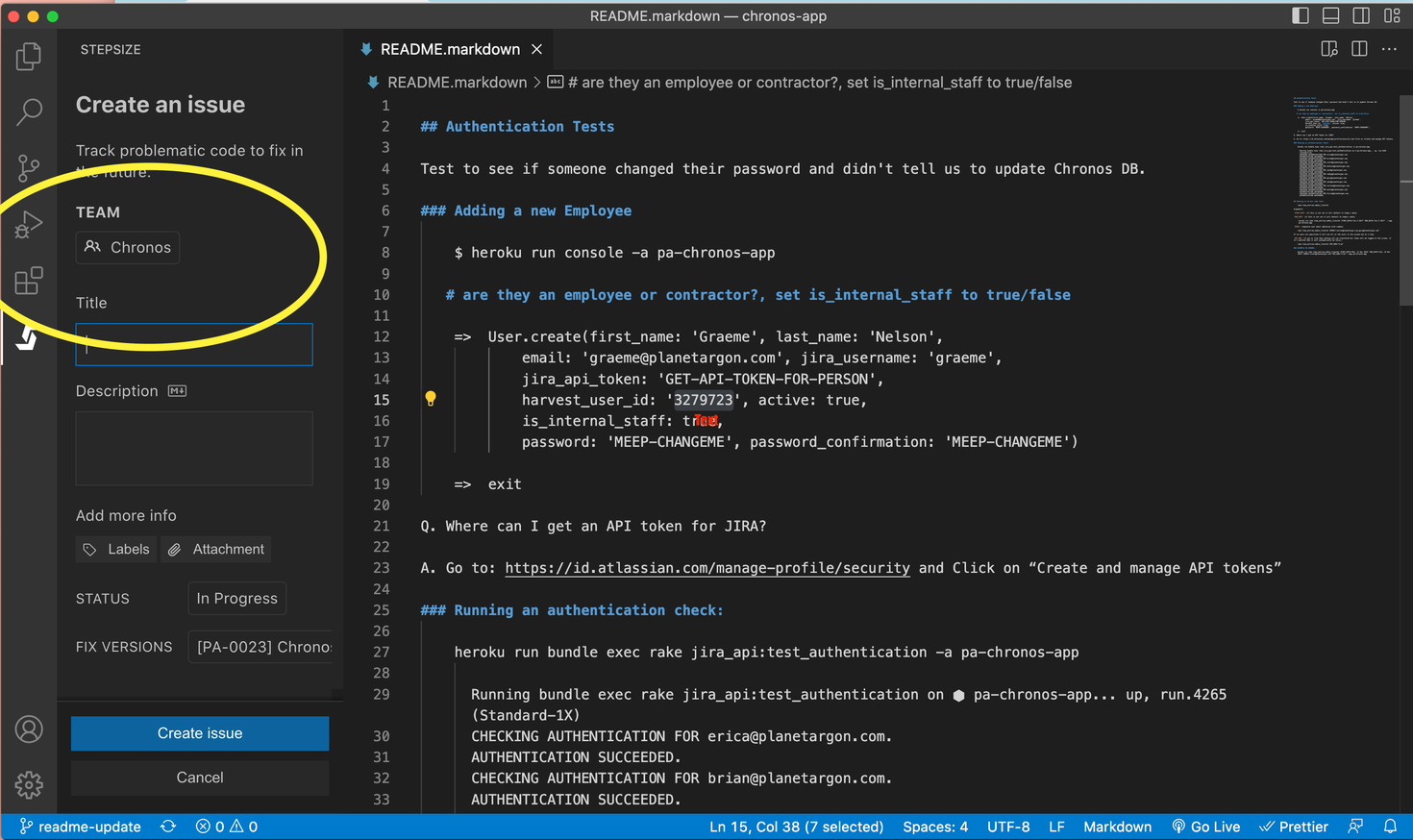
- Confirm that the project selected in the “Team” dropdown is your current codebase.
- Add a Title and Description following our technical debt requirements best practices.
- Add any Labels or Attachments you think will help clarify the issue you’re highlighting.
- Leave the Status label as Backlog.
- Choose the correct Fix Version for the project you’re working in (often “Retainer” is correct).
- Click “Add code snippet”, highlight the code you want tracked, then click “Confirm” under the Relevant Code section:
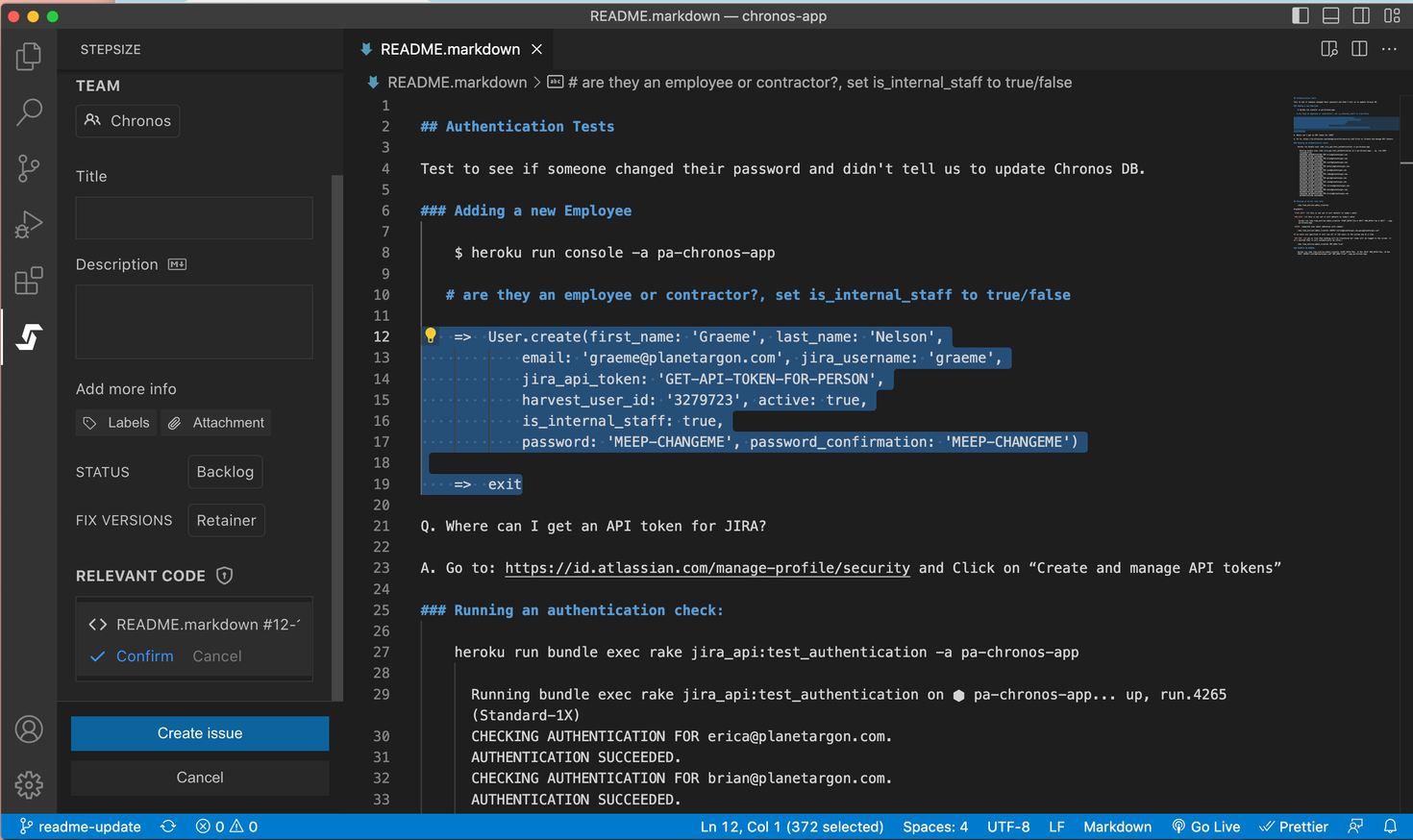
- Finally, click Create Issue.
Voilà! You’ve just added a new technical debt issue to that project’s Jira backlog.
Known issues
Section titled “Known issues”As of the creation of this page, there a few known bugs that the Stepsize team is working to address. These bugs have a minor impact on the issue creation workflow:
-
as of 02-28-23:
a. Bug: Selected “Team” (project) does not persist from Issue Management panel to Issue Creation panel.b. Workaround: After clicking the + New Issue button and being shown the Issue Creation panel, confirm that the “Team” listed is the correct project to which you want to add an issue:
-
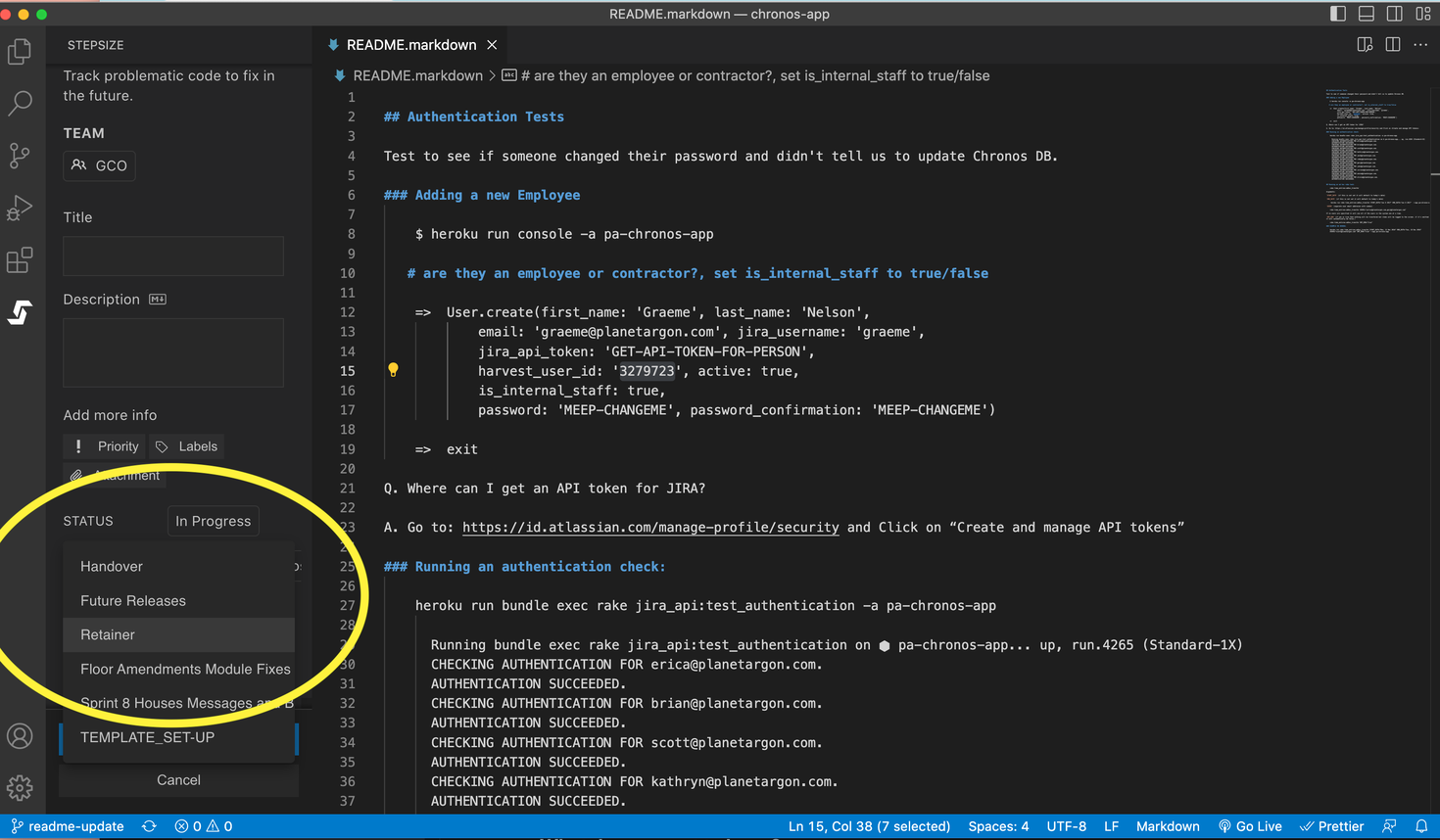
as of 02-28-23: a. Bug: The “Fix Versions” dropdown is not being updated correctly when switching between “Teams” (projects).
b. Workaround: Set fixVersions manually when creating an issue by opening up the dropdown menu and selecting the correct version. Generally, this is the generic “Retainer” version, or, the most recent monthly retainer.
c. Don’t know which retainer is correct?
i. Look at the “Releases” list under “Development” in the Jira project (I know, I know) and match one with one listed in the Stepsize Fix Version dropdown.ii. Ask your PM to which release version they would like you to assign this issue.